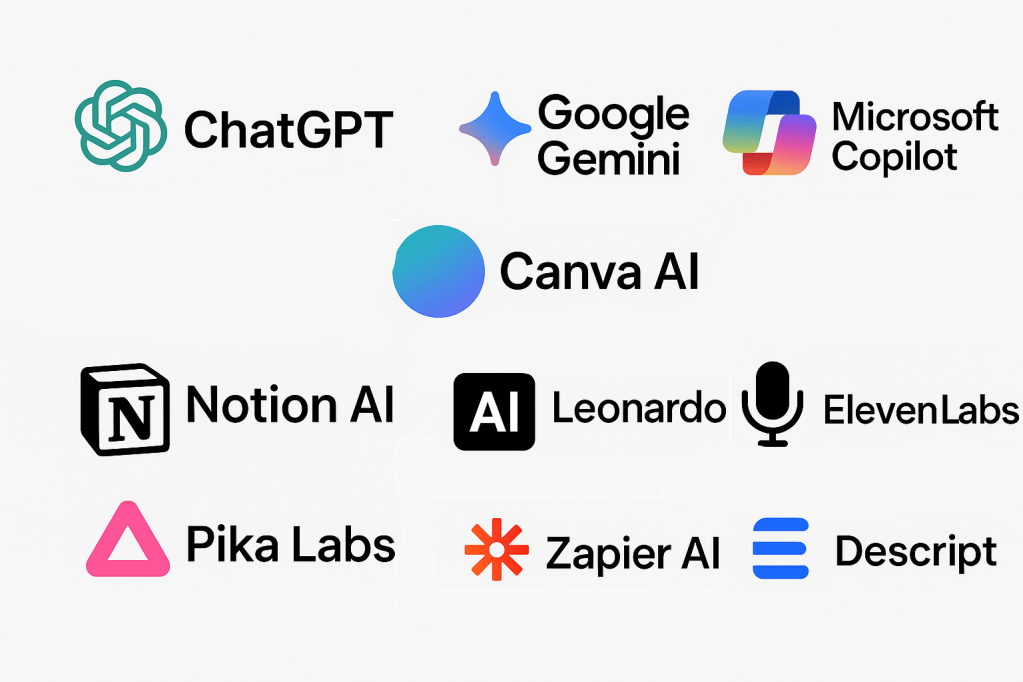
Top 10 AI Tools for Beginners (2025) — Step-by-Step Guide
Start here if you’re new to AI: this practical guide walks through the most useful, beginner-friendly AI tools, what they do, how you can use them immediately, and direct links to get started.
- 1. ChatGPT — All-Purpose AI Assistant
- 2. Google Gemini — Search & Creativity
- 3. Microsoft Copilot — Office Integration
- 4. Canva AI — Design Made Simple
- 5. Leonardo AI — Image Generation
- 6. ElevenLabs — AI Voice
- 7. Notion AI — Productivity & Notes
- 8. Descript — Video & Audio Editing
- 9. Pika Labs — Text-to-Video
- 10. Zapier AI — Automations
1. ChatGPT — All-Purpose AI Assistant
What it is: A conversational AI that helps with writing, coding, summarization, learning, brainstorming, and more.
Beginner use-cases
- Write blog drafts, emails, and resumes
- Get simple explanations of complex topics
- Debug code and generate example snippets
- Brainstorm ideas and outlines
Step-by-step: How to use
- Go to the official ChatGPT site.
- Create an account using email, Google, or Microsoft sign-in.
- Start a new chat and type what you need (e.g., “Write a 400-word blog intro about renewable energy”).
- Iterate by asking follow-ups like “Make this shorter” or “Add 3 practical tips”.
- Use prompts to control tone, length, and format (e.g., “Write as a friendly professional”).
Official link: https://chat.openai.com
2. Google Gemini — Search, Learning & Creativity
What it is: Google’s generative AI that complements search, summarization, and content creation across Google products.
Beginner use-cases
- Complex question answering with citations
- Summarize articles and videos
- Generate drafts for emails or documents
Step-by-step: How to use
- Sign in with your Google account.
- Open the Gemini interface (or use it within Google Search or Google Docs where available).
- Type a prompt and review the answer, using follow-ups to refine results.
Official link: https://gemini.google.com
3. Microsoft Copilot — Best for Office Users
What it is: An AI assistant integrated into Microsoft 365 apps (Word, Excel, PowerPoint), Windows, and Edge to speed up document creation and analysis.
Beginner use-cases
- Generate and edit Word documents
- Create slides in PowerPoint from a brief
- Auto-generate Excel formulas and pivot insights
Step-by-step: How to use
- Sign in with a Microsoft account that has Copilot access.
- Open Word, Excel, or PowerPoint and locate the Copilot/AI panel.
- Describe the output you need (e.g., “Create a 6-slide presentation about product roadmap”).
- Review and tweak the generated content.
Official link: https://copilot.microsoft.com
4. Canva AI — Design Made Simple
What it is: A drag-and-drop design tool with AI features (image generation, Magic Write, layouts) for non-designers.
Beginner use-cases
- Create banners, social posts, and presentations
- Generate images or assistive copy using AI tools
- Use templates and modify them quickly
Step-by-step: How to use
- Create a free Canva account.
- Choose a template or a blank design.
- Use “Magic Write” for copy or “Magic Studio” for images and edits.
- Download your design in the format you need (JPG/PNG/PDF).
Official link: https://www.canva.com
5. Leonardo AI — Realistic Image Generation
What it is: A platform focused on high-quality AI image generation useful for creatives and game/marketing assets.
Beginner use-cases
- Generate promotional visuals and concept art
- Create variations of an idea quickly
- Produce game or app assets for prototyping
Step-by-step: How to use
- Sign up for an account on Leonardo’s site.
- Open the image generation studio and enter a descriptive prompt.
- Choose model presets or styles and generate variations.
- Download or refine outputs as needed.
Official link: https://leonardo.ai
6. ElevenLabs — AI Voice Generator
What it is: A leading text-to-speech platform known for producing realistic, expressive voiceovers.
Beginner use-cases
- Generate voiceovers for videos or presentations
- Create podcast narration or audiobooks
- Prototype character voices for games or stories
Step-by-step: How to use
- Create an account at ElevenLabs.
- Choose a preset voice or create a custom one (depending on plan).
- Paste your text and generate audio; download as MP3/WAV.
Official link: https://elevenlabs.io
7. Notion AI — Productivity & Note-Taking
What it is: Notion is an all-in-one workspace with integrated AI helpers for summarization, writing, and organization.
Beginner use-cases
- Summarize meeting notes and action items
- Draft articles, checklists, and templates
- Organize research and projects with tags and databases
Step-by-step: How to use
- Sign up for Notion and create a workspace.
- Create a new page or open an existing one.
- Use the AI commands or “Ask AI” to summarize or expand text.
Official link: https://www.notion.so
8. Descript — Video & Audio Editing (Edit Like Text)
What it is: A multimedia editor that converts audio/video into an editable transcript — cut the text, cut the media.
Beginner use-cases
- Remove filler words and silence automatically
- Edit podcasts and videos via transcript editing
- Quickly create captions and short clips for social media
Step-by-step: How to use
- Create a Descript account and install the app if you want desktop editing.
- Import your audio or video file and let it transcribe automatically.
- Edit the transcript — changes apply to the media timeline.
- Export the finished video or audio file.
Official link: https://www.descript.com
9. Pika Labs — Text-to-Video for Short Clips
What it is: A fast-growing platform that generates short videos and creative reels directly from prompts.
Beginner use-cases
- Create promotional short videos and reels
- Prototype storytelling ideas visually
- Generate animated product concept videos
Step-by-step: How to use
- Sign up for Pika Labs using the web interface.
- Enter a descriptive prompt and choose duration/style if available.
- Preview generated clips, iterate on prompts, and download the final video.
Official link: https://pika.art
10. Zapier AI — Automations Without Code
What it is: Zapier connects apps and automates repetitive tasks. With AI features, you can enrich workflows with content generation and smart routing.
Beginner use-cases
- Auto-save form responses to spreadsheets
- Post social updates when a new blog is published
- Trigger AI text generation as part of workflows
Step-by-step: How to use
- Create a Zapier account and click “Make a Zap”.
- Choose a Trigger app (e.g., “New Email”) and an Action app (e.g., “Create Google Sheet row”).
- Optionally, add an AI action to transform or generate text during the Zap.
- Turn the Zap on and monitor runs in the dashboard.
Official link: https://zapier.com/ai
Final Thoughts & Quick Tips
These 10 tools cover the major beginner needs: writing & chat, search & knowledge, office productivity, design, image & video generation, voice, and automation. Quick tips to get the most out of these tools:
- Start small: Pick 1–2 tools that match your daily tasks and practice weekly.
- Learn prompts: Well-crafted prompts save time — include role, style, length, and examples.
- Check terms & pricing: Many tools offer free tiers with limits; review their privacy and usage policies for commercial projects.
- Combine tools: For example, generate copy with ChatGPT, create images in Leonardo or Canva, and automate posting with Zapier.
 Freshness Blog
Leave a comment